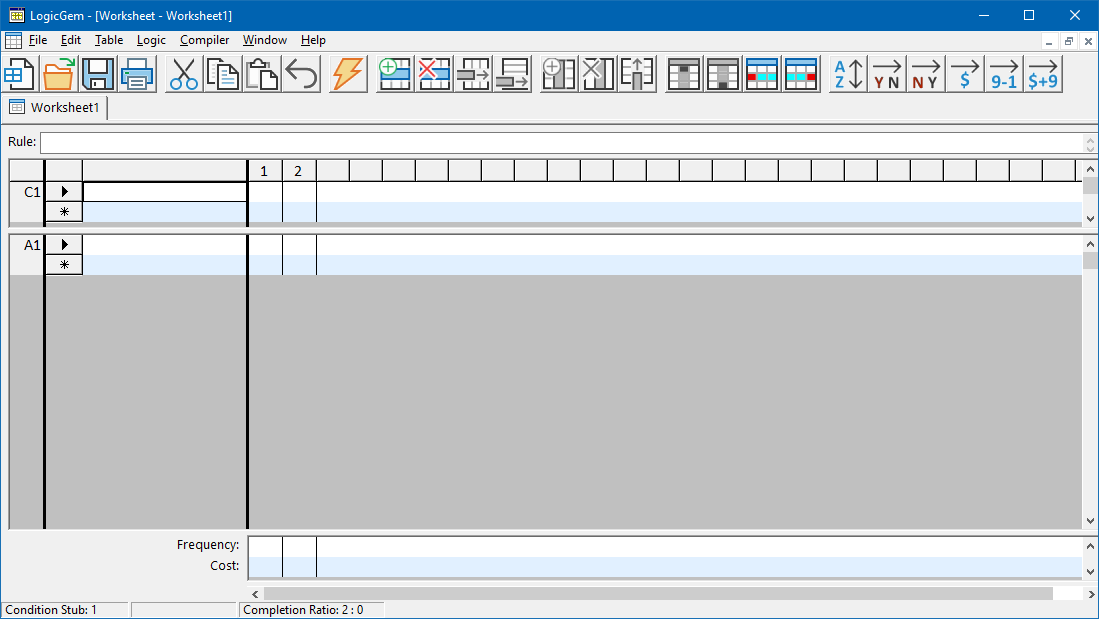
LogicGem can be used to work on new or existing decision tables (a decision table is stored as a file with a .lgt file extension). Decision tables are opened inside of the Worksheet window. The Worksheet window is shown below.
Create a New Table in one of two ways:
Click on the New option from the File menu.
Click on the icon to open a new (Worksheet) table.
Open an Existing Decision Table in one of five different ways:
Drag and drop an existing decision table (.lgt) file into the LogicGem main window.
Double-click on a decision table (.lgt) file in a Windows directory listing to automatically open it in LogicGem.
Click on the File drop-down menu, select a file from the previously opened files provided at the bottom of the menu.
Click on the File drop-down menu, click on the Open option to bring up a selection menu and locate the specific (.lgt) file to open.
Click on the icon to bring up a selection menu and locate the specific (.lgt) file to open.
Multiple decision tables can be opened and selected by clicking on the tab with the table file name. In this example, a new table was created and is given the default name "Worksheet1".
Close a Table in one of two ways:
Click on the Close option from the File menu.
Click on the close button of the Worksheet window you wish to close.
In either case, closing a table may result in LogicGem asking "Do you want to save the changes you made to Worksheet?" This prompt appears if you edited your table since opening it, and thus prevents you from losing possibly valuable changes in your table. You can respond by clicking Yes, No, or Cancel your request to close the table.